Monday, August 22, 2016

Populate cost center segment on PO Charge natural account without Mapping s

We need to know how to populate the cost center segment on PO Charge natural account without creating a mapping set.how can a cost center rule be created to assign Location Code as Cost Center segment on PO Charge Natural account field on requisitions and purchase orders?

We want to accomplish this without a mapping set since cost center segment exactly matches with Location Code. Also since we have many location codes we do not want to maintain the mapping set.

Solution -
We found a possible solution.
We assume when the customer says location they mean Deliver-to Location. That's the only location segment source for TAB.
If they mean for other things, the solution may not work.

First, go to manage accounting flexfield, find the value set for cost center segment. Here let's say it called VS1.
Second, create a new account rule, the rule type is value set and VS1 is the value.
Then, create a rule,value type is source, the value is Deliver-to Location and put a reasonable condition.
Last, If you're using the original TAD, we suggest creating a new one. Put the the account rule in for charge account and cost center.

Friday, August 19, 2016

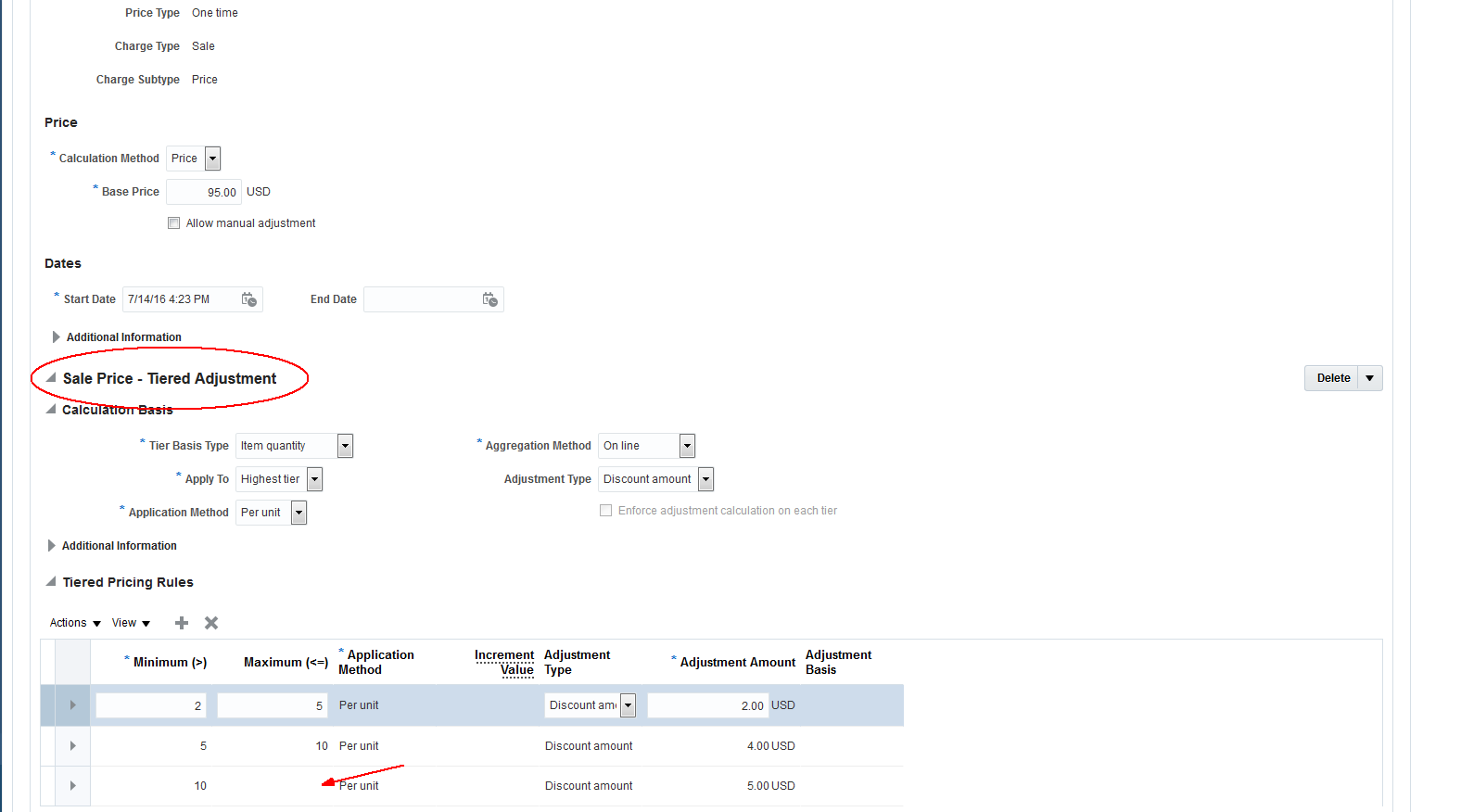
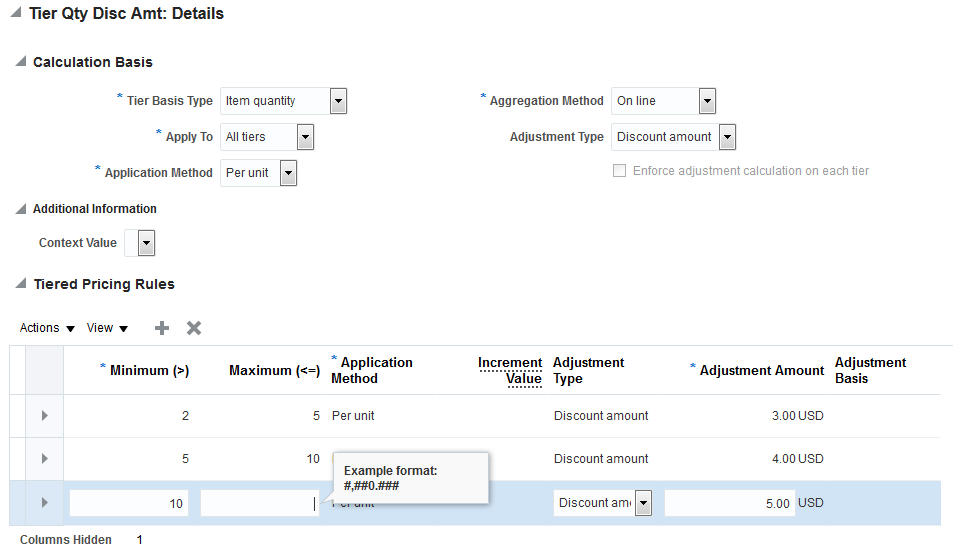
Error occurs when maximum quantity is not entered in Tier Based Discounting


Steps -

1. Login to the Application
2. Click on Pricing Administration
3. Click on side picklist and navigate Discount Lists (Assuming that the existing Discount List is connected to Strategy and other pre-reqs are done)
4. Now, search for a discount list and select an item
5. Click on Add Charge and select Tier Based Discounting
6. Create min as 2 and max as 5, application method: per unit and adjustment value as 3 USD
7. Similarly min as 5 and max as 10 ,application method: per unit and adjustment value as 4 USD
8. Min as 10 and do not give any max value (as max value is not a mandatory term here)


Wednesday, July 27, 2016

How to control reminder invitation e-mails for RFQ?

Requirement-

The customer want to stop or set interval of invitation e-mails for RFQ. It might be able to be modified on Task Configuration of BPM. But, we are not sure which tasks we should modify reminder settings.
Could you let us know which tasks should we modify?

Answer -

For human task notifications, you can change the reminder settings for InviteSupplierRequestForAction task via BPM Worklist. Changing reminder settings for ATK emails is not permitted. ATK emails are ones sent to additional supplier email specified in negotiations.

Alternatively, negotiation invitations can be turned off using notification subscription task, 'Manage Sourcing Notifications'. You can access this task from Setup and Maintenance.

How to change contents of email sent to supplier?

Requirement -

Need to change contents and rearrange some links shown on the email that is sent out to the supplier when a Negotiation is approved.
How to change the Email body - add more details, change content of the email subject ?

you can customize the notification content for notifications sent to suppliers using page composer. The user must be an admin user and access notification by logging into the Oracle BPM Worklist application. See http://www.oracle.com/webfolder/technetwork/tutorials/tutorial/cloud/r11/wn/r11_procurement_wn.htm#_Toc443569445

Answer

We followed the action plan provided by http://myforums.oracle.com/jive3/thread.jspa?messageID=8966423&#8966423.
"After logging into the BPM worklist application, select 'Administrative Tasks' in the tasks options on the left. Then open the notification you want to customize. If you have logged in as the Procurement Applications Administrator, you should see a link called 'Edit' on the top left side of the page. Once you click that, the notification opens into the Page Composer mode, and you will be able to customize the content as allowed by the Page Composer. Note that you do not need to go to the Administration view (as you can see in your attached document) for this. Simply open the notification from the worklist.
Document:
http://www.oracle.com/webfolder/technetwork/tutorials/tutorial/cloud/r11/wn/r11_procurement_wn.htm#_Modify_Supplier_Notifications

Now If you want to only update the text displayed on the BPM notification and ensure that it is translated, you can do it via the Customize User Interface Text tool. You can also update the text included on the e-mail with the Customize User Interface Text. You must be in a properly configured Sandbox to use the User Interface Text editor tool. It can be accessed from the Navigator > Tools > User Interface Text by an Application Administrator.
This document Extending the Applications for Functional Administrators ( https://docs.oracle.com/cd/E56614_01/common_op/OAEXT/toc.htm ) explains how and when to use the Page Composer and the Customize User Interface Text tool to extend Fusion application pages."

1st Option:
In BPM we override the text but after coming back it not reflecting. It is taking the old text.
Also We are not able to move the content or add a new content

2nd Option:
Navigator > Tools > User Interface Text by an Application Administrator
But nothing happening.

Alternatively

After logging into the BPM worklist application, select 'Administrative Tasks' in the tasks options on the left. Then open the notification you want to customize. If you have logged in as the Procurement Applications Administrator, you should see a link called 'Edit' on the top left side of the page. Once you click that, the notification opens into the Page Composer mode, and you will be able to customize the content as allowed by the Page Composer. Note that you do not need to go to the Administration view (as you can see in your attached document) for this. Simply open the notification from the worklist. You can try this on your internal environment.

Also, If you want to only update the text displayed on the BPM notification and ensure that it is translated, you can do it via the Customize User Interface Text tool. You can also update the text included on the e-mail with the Customize User Interface Text. You must be in a properly configured Sandbox to use the User Interface Text editor tool. It can be accessed from the Navigator > Tools > User Interface Text by an Application Administrator.

This document Extending the Applications for Functional Administrators explains how and when to use the Page Composer and the Customize User Interface Text tool to extend Fusion application pages

Lead Time Feature in Fusion

Uses of Lead Time in Oracle Fusion :

Item level
BPA Level - The lead time defined on the BPA lines are displayed when the user searches and compares items from the catalog.
Min Max -

1. Pre-processing, Processing lead times: they are added to the current date for determining the requisition need by date.
2. Post-Processing lead times: it is added to the Min-max supply cut off date for determining the availability of the supply quantity from the reqs and po supply.

Agreement date is the earliest of these 3 dates: Date when agreemeent was communicated to the supplier, Date when agreement was acknowledged by the supplier, Date when Agreement became live and went under change control.

Thread: Warning when trying to create Purchasing Document Complete Award in R11

After upgrade to Release 11, Customer started getting waring, when they are trying to create Purchase Order from Complete Award in Negotiation. Customer expectation to fix the issue in release 11 as it was working in release10.
Steps:
1. Create Negotiation
2. Received response from Suppliers
3. Manage Negotiation Actions -> Award -> Award Negotiation
4. Apply award to the line
5. 'Complete Award' option
6. Trying to create Purchasing Document and getting getting warning.

'You will not be able to create purchasing documents in the external application because the target purchasing service URL is empty
Do you want to continue?'


The 'Purchasing Documents' field was introduced in Release 11 as part of the award web service feature. For details, please refer to the Whats New document and the Release Training:
http://www.oracle.com/webfolder/technetwork/tutorials/tutorial/cloud/r11/wn/r11_procurement_wn.htm#_Toc443569446

If the 'Purchasing Documents' field is greyed out, it is likely because Purchasing is not set as implemented in the setup offerings and therefore 'Export using web service' is the only option available for purchasing documents creation. Once the target URL is defined for the award service using the 'Configure Negotiation Award Outbound Service' setup task, the warning will not be displayed anymore.
In 'Configure Procurement Business Function' screen 'Purchasing Documents' is available with "Create in Oracle Fusion Purchasing" and "Export using web service". Since this comes under "Sourcing" section.

For the field 'Purchasing Documents' to be enabled, and for you to be able to select 'Create in Oracle Fusion Purchasing', you need to ensure that the offering 'Purchasing' is set to 'Implemented' in the customer instance. On the setup and maintenance page, check the Configure: Procurement page for the Procurement offering. Implementation Status column for Purchasing should be marked as 'Implemented'. 

Multi Attribute Scoring

Could you explain this with an example? I see I can set 'Ranking Method' to 'Multiattribute scoring'. But I'm not sure how this works in a simple example.

How does it calculate if Supplier A offers price 500 with score 10 and Supplier B offers price 499 with score 1?

Answer

When the Ranking Method is set to Multi attribute scoring, the rank is based on price over score (i.e. price divided by score) and the supplier with the lowest price over score is ranked number 1. In the customer's example, since 500/10=50 is lower than 499/1=499, Supplier A is ranked number 1.

In Multiattribute scoring, it uses the line price and line attribute score to determine the rank, requirements are not used in the ranking.